MyMicTester
Menu
100% Private & Local — Audio Never Leaves Your Browser
Updated 2026-11-25 · Tested on Chrome, Safari & Edge

Online Mic Test (Free Microphone Check & Playback)

Run a fast mic test online with real-time waveform, spectrum analyzer, clipping alert, Raw vs. Call Mode toggle, and side-by-side A/B local playback — 100% private in your browser.

Click "Start Mic Test" and select "Allow" when your browser asks for microphone access. Nothing is uploaded or saved.

Ready to visualize your microphone input

Live waveform, frequency spectrum, clipping detection & A/B playback

Input Level MeterIdle

Status

Standby

Clipping Alerts

0 (Clean)

Sample Rate

—

Channels / Latency

—

Local A/B Mic Playback Comparison

Record up to 10s per slot to compare two mics or Call vs. Raw mode.

Sample A empty — start mic test above to record local playback.
Sample B empty — start mic test above to record local playback.

Echo Bleed Check & Hardware Details

Test whether your microphone picks up speaker output (acoustic bleed) or copy your real negotiated browser audio parameters.

Echo Cancellation
—
Noise Suppression
—
Auto Gain Control
—
Active Device
Not connected

At a Glance

An online mic test checks whether your computer, headset, USB, or mobile microphone captures clean audio directly through your browser's Web Audio API. Aim for normal speech levels between -24 dBFS and -6 dBFS, ambient room noise below -45 dBFS, and zero red clipping alerts — all processed 100% client-side with zero audio uploads.

How to Check a Microphone Online in 3 Simple Steps

Knowing how to test microphone hardware properly takes under 30 seconds and requires zero software downloads. Click Start Mic Test and grant temporary browser access. Choose your USB mic, gaming headset, Bluetooth earbuds, or built-in laptop microphone from the device list. Speak naturally for a quick voice test and verify that your meter sits between -24 dBFS and -6 dBFS without red clipping spikes. Finally, capture a short clip in Sample A for instant mic playback so you hear your exact sound before joining Zoom, Microsoft Teams, or Discord.

Step 1

Allow Local Access

Click Start Mic Test and allow browser permission. Your hardware name and real sample rate load automatically.

Step 2

Check Levels & Clipping

Watch the live waveform, run a microphone clipping test for distortion, or launch the 30s Meeting Readiness Check.

Step 3

Compare A/B Playback

Record Sample A and Sample B side by side to compare microphones or toggle between Call Mode and Raw Studio Mode.
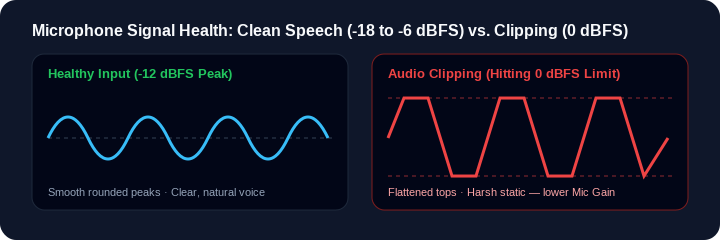
Microphone waveform comparison showing healthy speech peaks at -12 dBFS versus harsh audio clipping at 0 dBFS
Healthy speech produces smooth rounded peaks; flattened tops at 0 dBFS signal clipping distortion.

Why Run Your Mic Check on MyMicTester?

100% Local & Private

Every waveform, recording, and decibel reading runs strictly in your browser memory via Web Audio API. Zero audio bytes ever leave your device.

Actionable Diagnostics, Not Just Waves

Instead of leaving you guessing at a moving line, our 30-second Pre-Meeting Readiness Check scores room noise, vocal loudness, clipping, and stereo output.

Raw Studio vs. Call Mode + A/B Compare

Toggle browser noise suppression and auto-gain off to hear your true hardware quality, and record two 10-second clips side-by-side to compare microphones.

Complete Mic, Headset & Audio Suite

Test your microphone, left/right headphones, Bluetooth audio latency, speakers, 3D surround positioning, and room decibels in one ultra-fast offline-ready PWA.

Want full technical details? Explore our Web Audio testing methodology and zero-upload privacy architecture.

Next Audio Checks After Your Mic Test

Once your microphone passes, verify your output hardware in seconds before joining a call or game:

Verify left and right headphone channels →

Confirm both earbuds and headset earcups play cleanly in full stereo.

Run a desktop stereo speaker sound test →

Check left/right external speaker placement and stereo sweep balance.

How to Read Your Voice Test Metrics

Metric Ideal Target What Needs Attention Recommended Next Step
Room Noise Floor Below -45 dBFS Above -35 dBFS (fan hum, AC, street noise) Check Sound Meter →
Speaking Level -24 to -6 dBFS Below -35 dBFS (too quiet on calls) Make Mic Louder →
Clipping Alerts 0 Events Repeated peaks hitting 0 dBFS Adjust Mic Gain →
Echo Bleed Clean Isolation Mic captures desktop speaker audio Fix Audio Bleed →

Frequently Asked Questions

How to test microphone input online right now?

Click "Start Mic Test" above and choose "Allow" when your browser requests microphone access. Speak normally and watch the waveform and input level bar respond. For best results, record a quick 5-second clip in Sample A for instant mic playback to confirm voice clarity and volume.

Does MyMicTester record or upload my voice to any server?

No. Every mic test online, waveform plot, clipping counter, and A/B playback recording runs 100% locally inside your web browser memory via the Web Audio API. Zero audio bytes ever leave your device or touch a server.

What is a microphone clipping test and why does it matter?

Audio clipping happens when your voice signal exceeds 0 dBFS and flattens the tops of the waveform, creating harsh distortion. Our live microphone clipping test flags every overload frame in red so you can lower input gain or step back 4–6 inches before a call.

Read our Mic Gain & Clipping Guide →

Why should I switch between Call Mode and Raw Studio Mode?

Browsers automatically apply echo cancellation, noise suppression, and auto gain control (Call Mode), which mirrors Zoom or Teams but masks hardware hiss. Switching to Raw Studio Mode disables those filters so you can inspect true background noise and raw hardware sensitivity.

What if the waveform stays flat during my mic check?

Confirm the right input device is chosen in the dropdown above and inspect any physical inline mute switch on your headset cable. If the line stays flat, verify browser permissions and OS input levels.

Open the Mic Not Working Troubleshooting Guide →

Run every microphone, headphone, speaker, and delay diagnostic directly in your browser.

Left/right channel check, mono vs. stereo, and earbud balance tester.

Measure Bluetooth headphone and audio/video sync delay in milliseconds.

Left/right speaker check, stereo sweep, and directional audio test.

Interactive 360° HRTF surround and spatial sound positioning radar.

Real-time relative decibel (dB) meter for room noise floor checks.

Related Troubleshooting & Device Guides

Browse Microphone & Audio FAQ →
Mic Not Working

Complete PC & laptop microphone troubleshooting checklist.

Make Mic Louder

Boost low microphone volume and sensitivity in Windows 11 & 10.

Mic Permissions

Allow, enable, or disable microphone access in browsers & OS.

Windows 11/10 Mic

Test, connect, monitor, and fix audio bleed on Windows PCs.

Headset Mic Fix

Fix 3.5mm splitter, USB, and Bluetooth headset mic issues on PC.

Teams Mic Test

Verify your mic, camera, and speakers in Microsoft Teams before meetings.