1. Why Is My Headset Mic Not Working on PC? (3.5mm TRRS vs. TRS)
Understanding how to use headset mic on PC starts with your plug geometry. Mobile earbuds and console headsets use a single 4-pole TRRS plug (3 black rings), whereas desktop PC motherboards split output (green TRS) and microphone input (pink TRS) into two separate jacks.
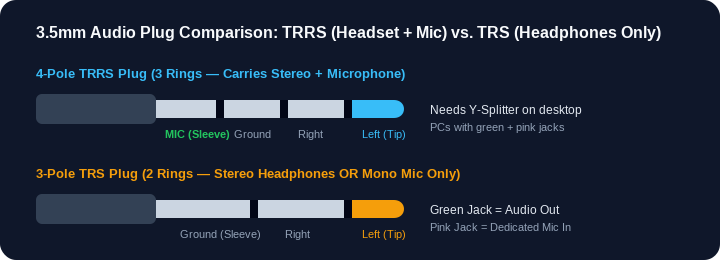
| Connection Type | PC Port Required | Fix When Headphones Microphone Not Working on PC |
|---|---|---|
| Single 3.5mm TRRS plug (3 rings) | Laptop combo jack OR Desktop Y-splitter | Use TRRS-to-dual-TRS splitter on desktops; pick "Headset" in Realtek on laptops |
| Dual 3.5mm TRS plugs (green + pink) | Green Line Out + Pink Mic In | Verify pink plug is seated in rear motherboard Mic In, not blue Line In |
| USB-A / USB-C Headset | Direct USB motherboard port | Select headset by brand name under Windows Settings → Sound → Input |
| Bluetooth Headset / AirPods | PC Bluetooth 5.0+ adapter | Verify "Connected voice, music" status and enable Hands-Free profile |
Using a console headset on Xbox instead of PC? Xbox Series X/S controller headset fixes
2. Fix PC Not Detecting Headset Mic on Windows 11 (Realtek Console)
When a PC is not detecting a headset mic on Windows 11 via a laptop combo jack, the Realtek audio driver has usually locked the jack into "Headphones" mode instead of "Headset."
- Open the Start menu and launch Realtek Audio Console, Waves MaxxAudio Pro, or HP Audio Control.
- Navigate to Device Advanced Settings → Analog Connector Retasking.
- Switch the 3.5mm port from "Headphones" to "Headset (with Microphone)" and enable jack pop-up prompts.
3. Clean USB & Bluetooth Mic Setup on Desktop PCs
For USB gaming headsets and wireless dongles, bypass unpowered monitor USB hubs and complete a clean mic setup directly in Windows Sound Settings:
- Open Settings → System → Sound → Input and select your exact headset name instead of Realtek Internal Array.
- Ensure no inline cable wheel or flip-up boom arm is muted.
- Verify stereo output and boom mic pickup separately to confirm full two-way headset health.
Step 1 (Output): confirm stereo earcup output in the headphone tester
Step 2 (Input): test your headset boom mic with local playback
Still completely silent across all ports? general PC microphone troubleshooting checklist